
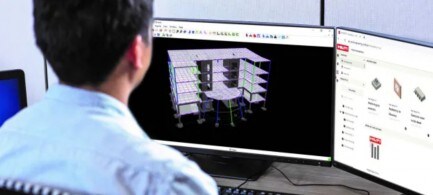
Get started using the integration with RAM Structural System
Hilti’s PROFIS Engineering software is now integrated with RAM Structural System, so engineers can seamlessly transfer their designs from the super structure analysis module to perform anchor and base plate designs. This article will walk you through the process step-by-step to get you started.
If you have never used PROFIS Engineering, log on to https://profisengineering.hilti.com/ to get started. Once at this website, you will be prompted to either Log In or Register.
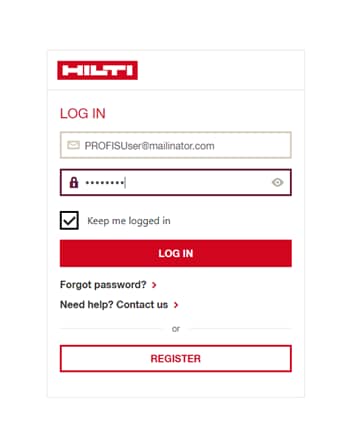
First time users should click on the Register button at the bottom of the log-in screen to get started. If you have already registered for PROFIS Engineering, simply login to the application by entering your registered E-mail address and Password.

To register, provide your E-mail address, create a Password and select your Country of Residence.
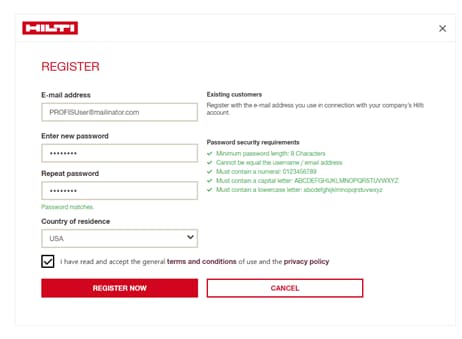
Once you hit Register Now, two things will happen:
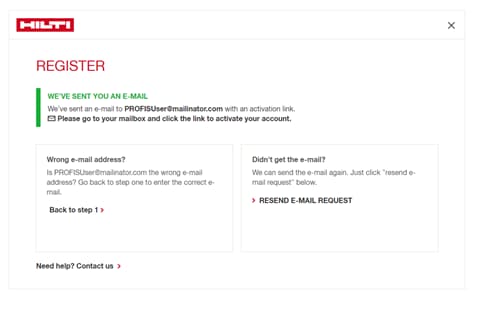
1) you will receive an E-mail asking you to confirm your registration and
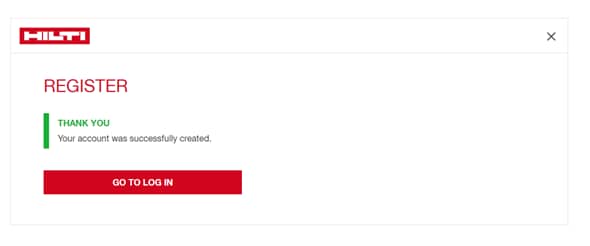
2) will then see the following screen which will prompt you that your Registration has been submitted with a GO TO LOGIN button (see image 2 below)
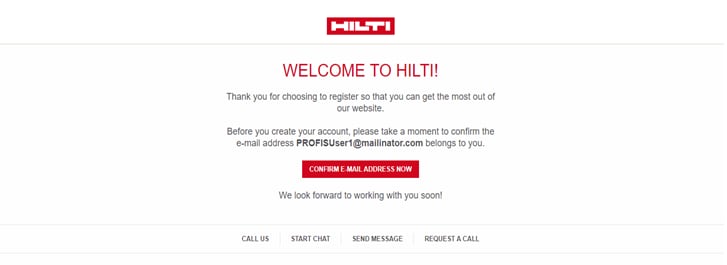
Next, find the E-mail that was sent to your Inbox and hit the CONFIRM E-MAIL ADDRESS NOW button. If you do not find the email, please check your Junk or Spam folder. After confirming your email address, you will be able to login to Hilti PROFIS Engineering.
After you have CONFIRMED E-MAIL ADDRESS NOW from your Inbox, you are ready to login to Hilti PROFIS Engineering. You can either hit the GO TO LOG IN button on the Register page or type in the following address into your browser https://profisengineering.hilti.com/. From there, you will be prompted to log-in with your E-mail and Password.
When logging in for the first time, the final step is to select your license type. At this point, you can purchase a premium license directly or sign-up for a 30-day free trial to PROFIS Engineering Premium. Upon completion of the 30-day trial, you will have the option to continue with PROFIS Engineering Premium or select the free-of-charge standard version.
PROFIS Engineering Premium provides many productivity enhancements for the user. These include: the Base Plate Module which helps the Designer to evaluate the entire fixture in one software package; multiple load combinations allowing the user to evaluate all design considerations at one time; REVIT Plug in which allows the designer to export their fixture design quickly to create construction documents; and integration with most Analysis software packages to facilitate fast automated transfer of designs from the superstructure to connection reducing errors from manual transfer of information. Engineers estimate that the premium features save over an hour per design. Flexible licensing options include standalone and floating license options. Standalone licenses give full time access to power users of the anchoring design software, where floating licenses allow users to share a single license.
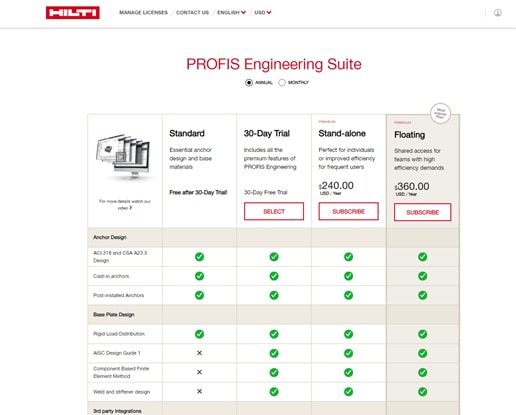
Compare the options from Premium and Standard:

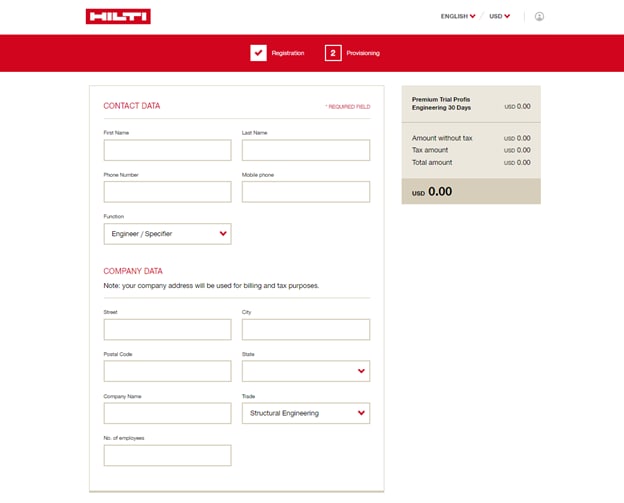
After selecting the license option that is right for you, then you will now complete your registration process by entering your full contact information and company data.
Upon your first login, you will need to select your region and language and accept the End User License Agreement (EULA).
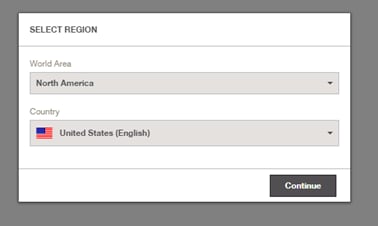

Now, you are set up with PROFIS Engineering and are ready to get started!
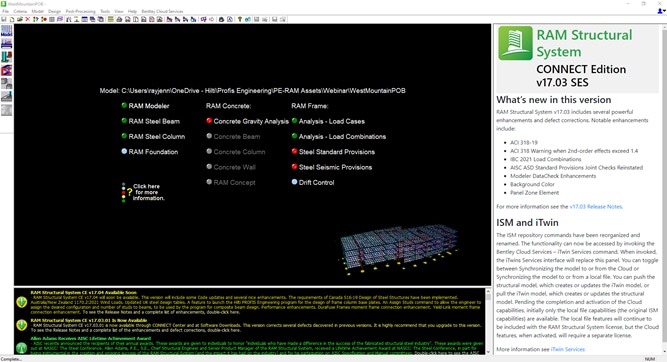
Make sure you have updated your RAM Structural System software to version 17.04 or newer. Launch the software and complete your super structure design.
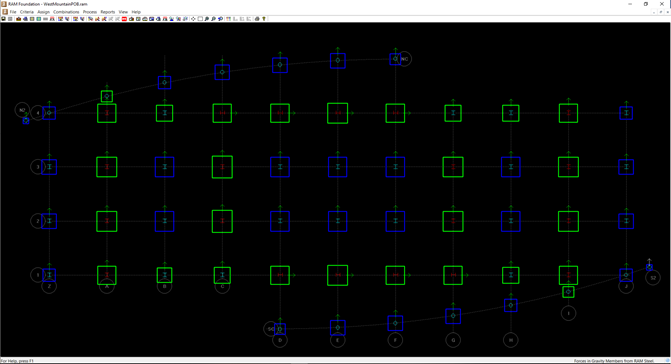
Launch the RAM Foundation model and design your foundations.
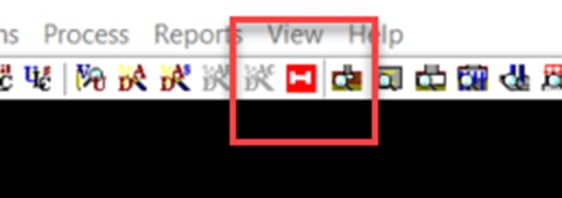
Select the Process menu or click on the Hilti Icon to export your designs to PROFIS Engineering. Then select a column to export.
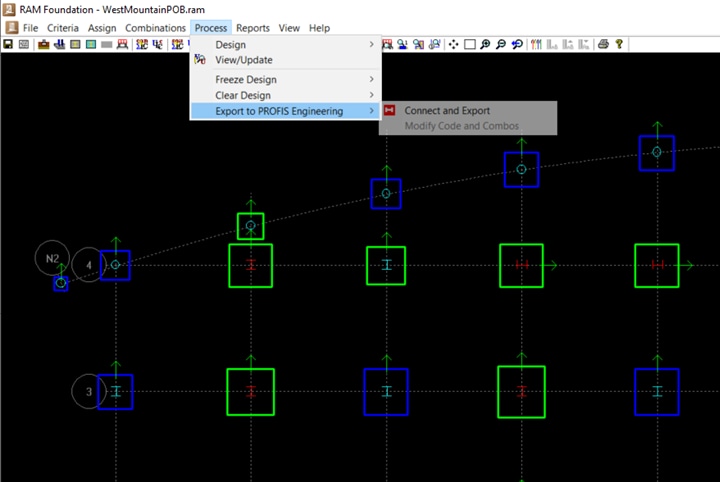
Hilti Icon (see below):
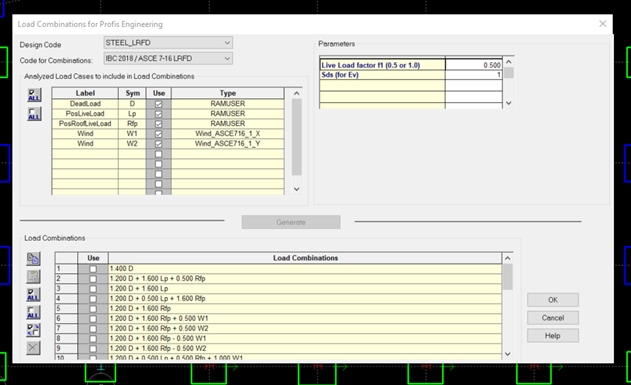
After clicking on the column, you will need to select the code and loads to create load combinations to export.
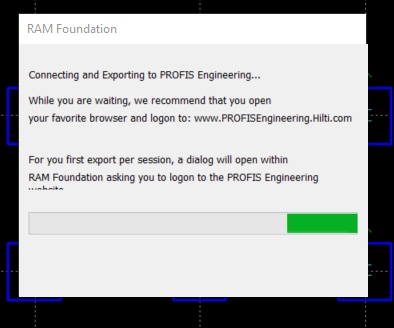
A window will appear to login to your PROFIS Engineering account. Use the same login and password you have set up for PROFIS Engineering to login. If you do not see this window, minimize your RAM software to see if it is behind an existing window. When the progress screen disappears, your design has been sent to PROFIS Engineering. This login ties your export to your PROFIS Engineering account so you will find your files the next time you log-in to PROFIS Engineering.
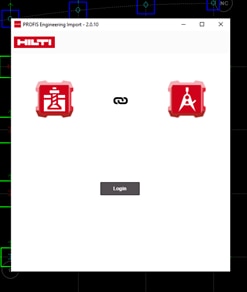
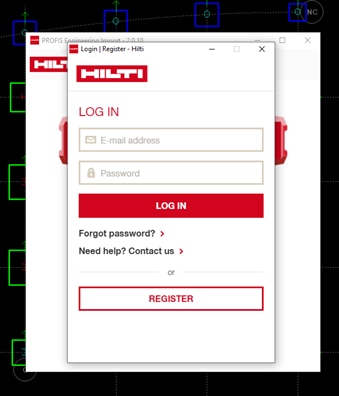
Now, navigate to https://profisengineering.hilti.com/ in your favorite browser. Once you log-in to PROFIS from your browser, you should see a notification that you have new files from RAM in your dashboard.
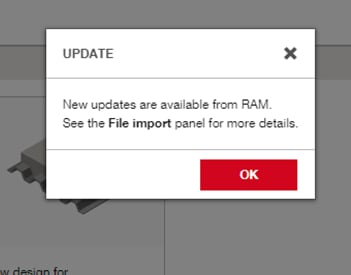
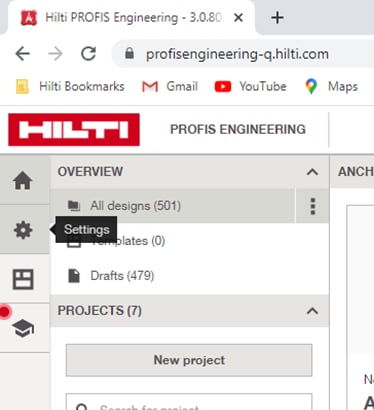
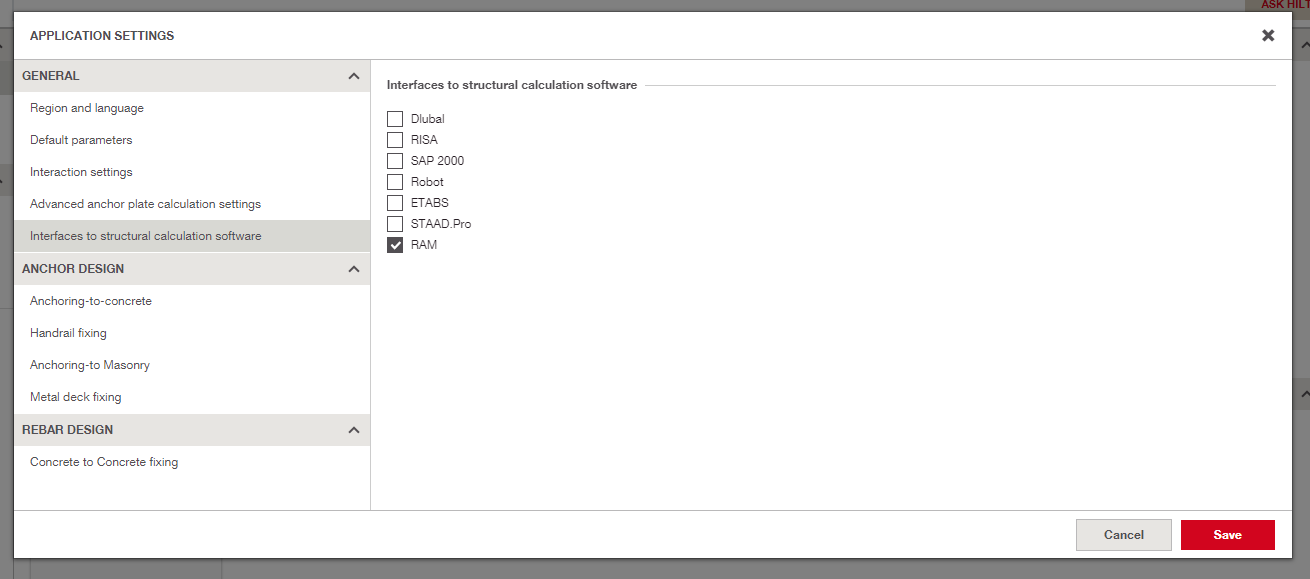
If this is not displayed, navigate to the settings menu using the gear icon and activate the RAM integration in the Interfaces to Structural Calculation Software menu with a check mark.
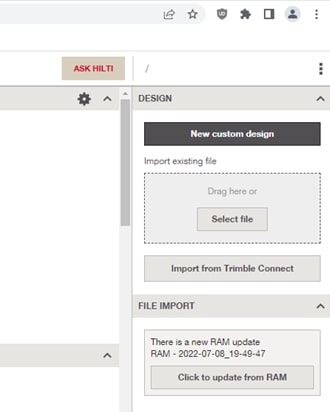
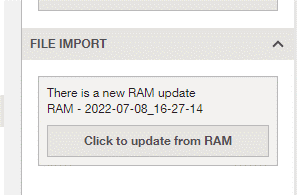
You will see your file ready to import in the File Import window on the right side of the dashboard.
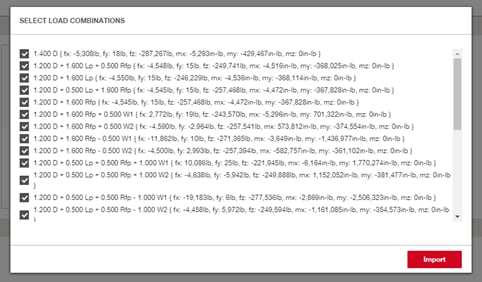
Click on update from RAM button in the File Import pane and you will see a menu to select your load combinations. If using PROFIS Engineering premium, you can import up to 999 load combinations. For standard users, you can select up to 10 load combinations for import. The first 10 will be selected. You can unclick combination and add different combinations to the import.
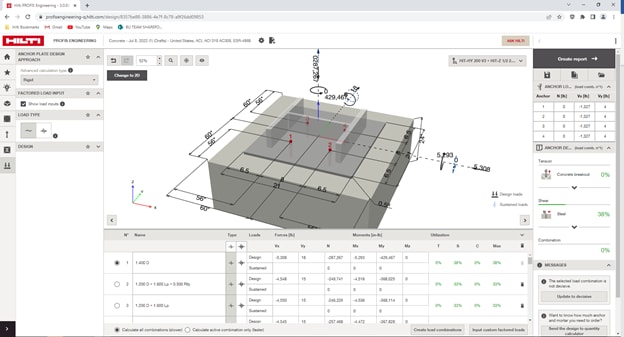
PROFIS Engineering will import the loads, base material, column size and material, base plate size and materials directly into the Anchoring to Concrete design module. Now, you can complete your anchor and base plate design.
For additional support, contact our team:
Hilti North America
(877) 879-6337
HNAtechnicalservices@hilti.com
www.hilti.com/engineering
More information can be found here:
PROFIS Engineering and RAM Structural System Integration
Tutorial Video
Hilti PROFIS Engineering